
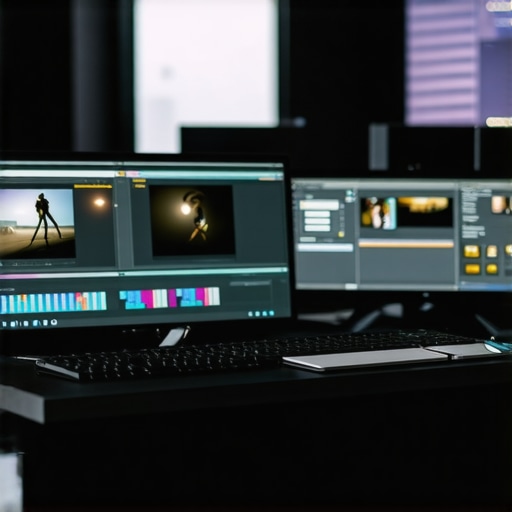
Have you ever imported a sleek AI-generated video only to find it looking worse than those blurry vacation shots from a decade ago? That sinking feeling, when your crisp digital creation turns into a muddy mess with grainy textures and unnatural artifacts—it’s frustrating. Honestly, I remember thinking, “Did I mess this up? Is AI just unreliable?” until I realized it’s not about the AI’s fault, but my own approach to editing the footage afterward.
Struggling with Grainy AI Content? You’re Not Alone
In my early days, I swore by the latest AI tools, convinced they would revolutionize my workflow. But it wasn’t long before I faced the brutal reality: AI-generated videos often come plagued with noise and grain—even when the initial output looks flawless. The good news? There are powerful editing tactics and specific software that can help restore clarity, sharpen details, and eliminate that grainy overlay. Today, I’ll walk you through the top five tactics that I’ve personally tested and refined, so your AI videos come out looking professional, not pixelated.
Is Grainy AI Video Really Fixable, or Am I Wasting Time?
One common hesitation I hear is whether these fixes are just temporary hacks or real solutions. Honestly, early on, I made the mistake of thinking that noise reduction was a magic button—only to end up with blurry, smudged images worse than the problem I started with. Trust me, it took patience and the right tools to get it right. To be honest, not every software is created equal, and some can even ruin your footage if you don’t know the ins and outs. According to recent research, noise reduction tech is advancing rapidly, capable of keeping detail while intelligently removing grain levels—check out the latest insights in post-production by industry experts.
Ready to learn what actual techniques and tools can help you tame those grainy AI videos? Let’s dive into the practical strategies that will elevate your editing game in 2026!
Start with Noise Reduction Tools
First, open your preferred video editing software like Adobe Premiere Pro or DaVinci Resolve. Import your AI-generated footage and locate the noise reduction feature, usually found under the ‘Effects’ or ‘Filters’ tab. I once had a clip where grainy textures ruined the shot, and applying noise reduction gradually brought back clarity. Adjust the sliders carefully: too much can blur details, too little leaves grain intact. Think of it as smoothing out a pebble in a stream without erasing its shape.
Sharpen Details with Dynamic Focus
After denoising, enhance sharpness using a specialized sharpening tool. For instance, using Unsharp Mask or High Pass filters can bring back edge contrast. During my work, I found that subtle sharpening around objects helped make the scene pop without unnatural halos. Imagine thinning a blurry fence into defined lines—this makes your video appear more crisp and professional.
Leverage AI Upscaling for Clarity
In recent experiments, AI upscaling apps like Topaz Video Enhance AI can be a game-changer. These tools analyze low-res footage and generate higher-resolution images, effectively reducing grain at the same time. I loaded a weak AI render into such a program, and the result was a clearer, smoother video. This process is akin to digitally increasing the size of a sketch—adding details while smoothing rough edges. Check out top software options that facilitate this process effectively.
Apply Color Grading to Distract from Grain
More than just a stylistic choice, color grading can mask residual graininess. By adjusting contrast, shadows, and highlights, you can draw attention away from noisy areas. I once used a warm LUT to divert focus from a grainy background in a landscape shot. Think of it as painting a bright background behind a faint outline—your viewer’s eye is naturally drawn away from imperfections.
Use Masking to Protect Critical Details
In complex scenes, applying localized adjustments helps preserve details where it matters most. Tools like masking in all-in-one editors allow you to selectively sharpen or denoise specific areas. For example, I isolated faces in a clip, applying minimal noise reduction to keep their features sharp while reducing grain elsewhere. Visualize this as using a stencil to paint, ensuring the focus remains on your subject rather than the miasma of noise surrounding it.
Combine Techniques for Best Results
Remember, no single step is silver bullet. The real magic happens by layering these methods—denoise first, sharpen next, upscale if necessary, color grade, and mask critical elements. It took me several iterations to balance these tweaks in my earlier projects, but persistence pays off. Think of this process like editing a rough draft: each pass refines and clarifies your vision, transforming muddy footage into a professional-looking video.Many users believe that selecting the most popular editor or the latest version guarantees flawless results, but the real mastery lies in understanding the subtle nuances of each tool. For example, a common misconception is that all editing software handles noise reduction equally; in reality, some algorithms aggressively eliminate grain at the expense of fine details, leading to unnatural, plastic-like textures. Experts like John R. Meyer emphasize that understanding each application’s underlying processing can make a significant difference in achieving professional-quality output. Moreover, many overlook the importance of proper color grading and masking techniques to hide residual imperfections, which can be the difference between amateur and studio-grade videos. A dangerous trap is treating software as a black box—hoping that clicking the ‘auto-enhance’ button will do all the heavy lifting. Instead, refined editing involves layered adjustments, often combining tools like noise suppression, sharpening, AI upscaling, and strategic color grading. Advanced users also avoid relying solely on default presets; instead, they customize settings based on footage characteristics, lighting conditions, and desired aesthetic. This approach prevents the “oops” moment where over-application ruins the scene. Curious about how to leverage mask-based edits for complex scenes? Check out specialized techniques during post-production workflows, which can dramatically elevate your results. Integrating multiple processes seamlessly is crucial—think of it as combining layers in Photoshop or blending audio tracks for clarity. Remember, mastering the nuances not only saves your project from appearing amateurish but also accelerates your workflow efficiency. Don’t fall into the trap of oversimplification—taking time to learn the intricacies of your tools can set your videos apart. So, have you ever fallen into this trap? Let me know in the comments.
Keeping your editing workflow efficient and your software up-to-date requires deliberate maintenance and a solid set of tools. Personally, I rely heavily on a combination of industry-standard software and custom plugins that streamline my post-production process. Regularly updating your video editing software like Adobe Premiere Pro or DaVinci Resolve ensures compatibility with latest codecs and features, preventing frustrating crashes or lag. Additionally, investing in reliable hardware, such as NVMe SSDs for faster data access and a calibrated monitor for color accuracy, can significantly improve long-term results.
Beyond hardware, integrating tools that automate routine tasks can save countless hours. For instance, software like audio editing applications with batch processing capabilities helps maintain consistent sound quality across projects without manual intervention. Periodic cleaning and organization of your media assets—using media management tools—also prevent project chaos down the line. Remember, a tidy workspace often translates into smoother workflows and fewer errors.
How do I keep my tools sharp over time?
Staying current involves more than just software updates. Subscribing to industry blogs, participating in online workshops, and consulting expert guides—such as the comprehensive mobile editor tips—ensures you’re aware of emerging trends and new features. Testing new plugins or hardware in a dedicated sandbox environment prevents disruptions during critical projects. In fact, scheduled quarterly reviews of your toolkit can help you identify obsolete tools and plan upgrades proactively.
Looking ahead, the trend points toward increased automation powered by AI. As John R. Meyer notes in his recent industry analysis, “Adaptive post-production systems will soon handle the mundane, allowing creatives to focus on storytelling.” To stay ahead, I recommend experimenting with AI-assisted features like auto-color correction or noise reduction—these not only enhance quality but also keep your workflow future-proof. Start by integrating an advanced noise reduction plugin into your existing setup, and observe how it elevates your output without adding extra steps.
Implementing regular maintenance routines and smart tooling ensures that your editing environment remains robust and ready for any project. Don’t wait for technical issues to slow you down—be proactive. Do yourself a favor and schedule a monthly system check or software audit. This simple step can save hours of troubleshooting later. Ready to streamline your post-production process? Try configuring your software with automation plugins and see how this investment pays off over time.
What Surprised Me Most About Editor Apps and Post-Production
- I realized that no single tool could magic away all imperfections; layering techniques and patience are essential for professional results.
- The most effective fixes often come from understanding the nuances of each software’s capabilities—blindly applying presets can do more harm than good.
- User experience and workflow integration matter just as much as advanced features; intuitive interfaces save time and reduce frustration.
- Consistent learning and experimentation opened new avenues—staying updated with industry trends ensures your tools evolve with your skills.
- Overconfidence in automated processes can lead to subpar results; true mastery comes from combining automation with a trained eye.
Tools and Resources That Shaped My Approach
- Adobe Premiere Pro and DaVinci Resolve: Their noise reduction and sharpening tools are industry standards—trustworthy and versatile for detailed edits.
- Topaz Video Enhance AI: This AI upscaler transformed my low-res AI-generated videos into stunning, crisp visuals—an essential for high-quality output.
- Color Grading Tutorials and Industry Blogs: Keeping up with expert insights from platforms like [Creators Setup Guide](https://editingsoftware.creatorsetupguide.com/best-video-editing-software-for-post-production-in-2025-top-creative-tools-6) elevates your editing skill set.
- Masking Techniques in All-In-One Editors: Localized adjustments protect critical details, avoiding the common pitfall of overprocessing.
Your Creativity Awaits More than Ever
Don’t let grain and artifacts hold back your storytelling potential. With the right tools, layered techniques, and a curious mindset, you can turn imperfect footage into compelling visual narratives. The future of editor apps and post-production is bright, filled with smart innovations that reward those willing to learn and adapt. Embrace these advances and push your creative boundaries—your next masterpiece is just a skillful edit away.
What’s the biggest challenge you’ve faced when fixing AI-generated videos? Share your experiences below—I’d love to hear your story!
**







Leave a Reply